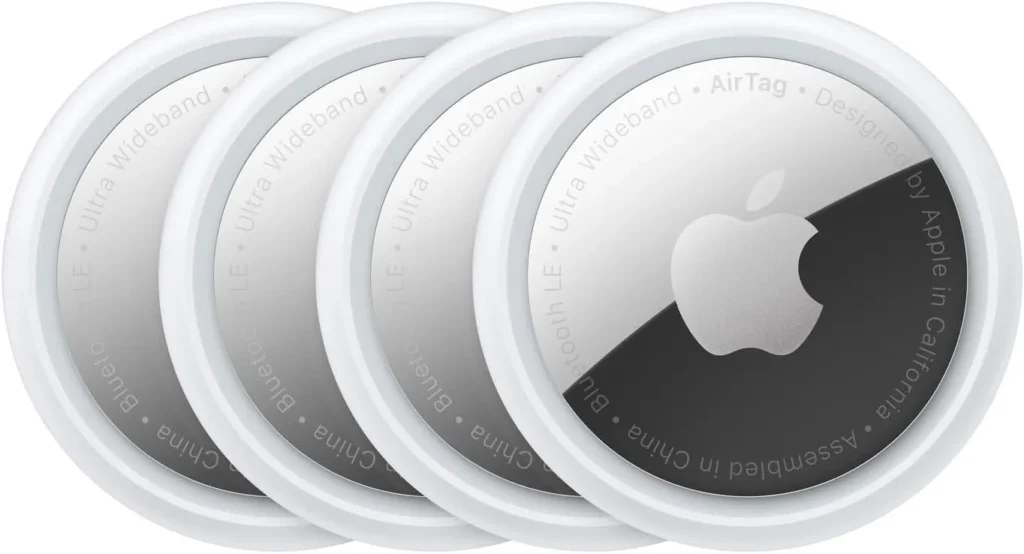
Apple AirTag 4 Pack – Track keys, bags, and valuables easily using the Apple Find My network.
Introduction to Apple AirTag for Keys
Overview of the Apple AirTag and Its Purpose
The Apple AirTag is a compact, wireless tracking device designed to help users locate and keep track of personal items. Originally introduced as a versatile tracking solution, the AirTag seamlessly integrates with Apple’s ecosystem, providing a reliable way to monitor items such as keys, luggage, backpacks, and more. Its primary purpose is to prevent the frustration and inconvenience of losing essential belongings by offering real-time location updates.
Benefits of Using AirTag to Track Keys
Utilizing an Apple AirTag for keys offers numerous advantages. It provides peace of mind by enabling quick retrieval of misplaced keys, saving time and reducing stress. The device’s precise location tracking, combined with the extensive Find My network, ensures that even if your keys are out of sight, they are still within reach. Additionally, the compact design and user-friendly interface make it an accessible and practical solution for everyday organization.
Why Choosing an AirTag Enhances Everyday Organization
Incorporating an AirTag into your daily routine transforms how you manage your belongings. It minimizes the risk of losing keys, streamlines your organization system, and fosters a proactive approach to item management. By attaching an AirTag to your keys, you create a digital safeguard that complements your physical organization, ultimately enhancing efficiency and reducing unnecessary stress.
Setting Up Your Apple AirTag for Keys
Initial Configuration and Pairing Process
Setting up your Apple AirTag for keys is straightforward. Follow these steps:
- Ensure your iPhone or iPad is running iOS 14.5 or later.
- Remove the plastic tab from the AirTag to activate the battery.
- Bring the AirTag close to your device; a prompt will appear on the screen.
- Tap “Connect” and assign a name to your AirTag (e.g., “Keys”).
- Choose or create a custom emoji label for easy identification.
- Confirm the setup, and your AirTag will be linked to your Apple ID.
Requirements and Compatibility Considerations
To ensure compatibility, your device must support the Find My app and be running iOS 14.5 or later. The AirTag pairs exclusively with Apple devices, such as iPhone 11 or newer, iPadOS devices, or Macs with macOS Big Sur or later. A stable internet connection is essential for initial setup and ongoing location updates.
Tips for a Smooth Setup Experience
- Keep your device close to the AirTag during setup.
- Ensure Bluetooth and location services are enabled.
- Update your device’s software to the latest version to access all features.
- Use a clear, well-lit environment to facilitate pairing.
Attaching the AirTag to Your Keys
Recommended Keychain Accessories and Holders
Choose high-quality keychain accessories designed for AirTags. Options include keyring loops, protective cases, or dedicated holders that secure the device firmly. Some accessories also offer waterproof or shock-resistant features for added durability.
Best Practices for Secure Attachment
- Attach the AirTag securely to prevent accidental detachment.
- Avoid placing the AirTag in areas prone to damage.
- Regularly inspect the attachment to ensure it remains intact.
Ensuring the AirTag Remains Functional and Accessible
Position the AirTag in a visible or easily accessible spot on your keys. Avoid obstructing the device with thick materials or placing it in hard-to-reach areas, which could hinder tracking capabilities.
Maximizing the Features of Your Apple AirTag for Keys
Using Find My App for Tracking and Location
How to Locate Your Keys Using the Find My App
Open the Find My app on your iPhone or iPad, select your AirTag labeled “Keys,” and view its current location on the map. If the device is nearby, you can play a sound to locate your keys audibly.
Understanding the Precision Finding Feature with Ultra Wideband Technology
For compatible devices (iPhone 11 and newer), Precision Finding utilizes Ultra Wideband (UWB) technology to guide you precisely to your keys. Follow the on-screen prompts, including directional arrows and distance indicators, to locate your keys efficiently.
Setting Up Notifications for When Your Keys Are Out of Range
Enable separation alerts within the Find My app settings. This feature notifies you if your keys are detected to be out of Bluetooth range, helping prevent accidental loss.
Practical Tips for Effective Use
- Regularly update your device’s firmware and the Find My app for optimal performance.
- Customize the AirTag’s name and assign an emoji label for quick identification.
- Use separation alerts to receive notifications when your keys are left behind or go out of range.
Ensuring Security and Privacy with Your AirTag
Best Practices for Safe Usage
Managing Sharing and Privacy Settings
Limit sharing of your AirTag’s location to trusted devices and users. Review privacy settings in the Find My app to control who can see your device’s location.
Recognizing and Preventing Unwanted Tracking
Be vigilant for unfamiliar AirTags nearby, which could indicate unwanted tracking. iOS devices notify users if an unknown AirTag is detected moving with them.
Understanding Apple’s Privacy Safeguards and User Controls
Apple employs privacy measures such as rotating identifiers and encrypted location data to protect user privacy. Users have control over their AirTag’s settings and can reset or disable the device at any time.
Troubleshooting Common Issues
What to Do if the AirTag Isn’t Detected
- Ensure the AirTag is within Bluetooth range.
- Restart your device and reopen the Find My app.
- Confirm the AirTag has power and is properly attached.
Replacing the Battery and Maintaining Device Longevity
The AirTag uses a standard CR2032 coin cell battery, which typically lasts about a year. To replace:
- Press down and rotate the back cover counterclockwise.
- Remove the old battery and insert a new one with the positive side facing up.
- Reassemble the device securely.
Resetting the AirTag for Repairing
To reset:
- Remove the battery.
- Press and hold the metal contacts for a few seconds.
- Reinsert the battery while holding the metal contacts.
- Repeat this process five times until the LED flashes.
Integrating AirTag into Your Daily Routine
- Make it a habit to check the Find My app regularly.
- Attach AirTags to other valuables like luggage, backpacks, or wallets.
- Use multiple AirTags to organize different items, creating a comprehensive tracking system.
- Combine AirTags with other Apple ecosystem devices, such as Apple Watch, for enhanced convenience.
Conclusion
Recap of Key Benefits and Features
The Apple AirTag for keys offers a reliable, user-friendly solution to prevent loss and streamline organization. Its seamless integration with the Find My app, precision tracking capabilities, and privacy safeguards make it an indispensable tool for everyday life.
Final Recommendations for Optimal Use
- Properly attach and secure your AirTag to your keys.
- Regularly update your devices and firmware.
- Utilize notifications and separation alerts to stay informed.
- Be mindful of privacy settings and security practices.
Encouragement to Adopt AirTag for Reliable Key Tracking
Embracing the Apple AirTag not only simplifies your daily routine but also provides peace of mind. Invest in this high-quality device to ensure your keys—and other valuables—are always within reach, enhancing your overall organization and security.
If you’re ready to buy the Apple AirTag 4 Pack, grab it here on Amazon: Check the latest price on Amazon.